

Step 1: Download the App
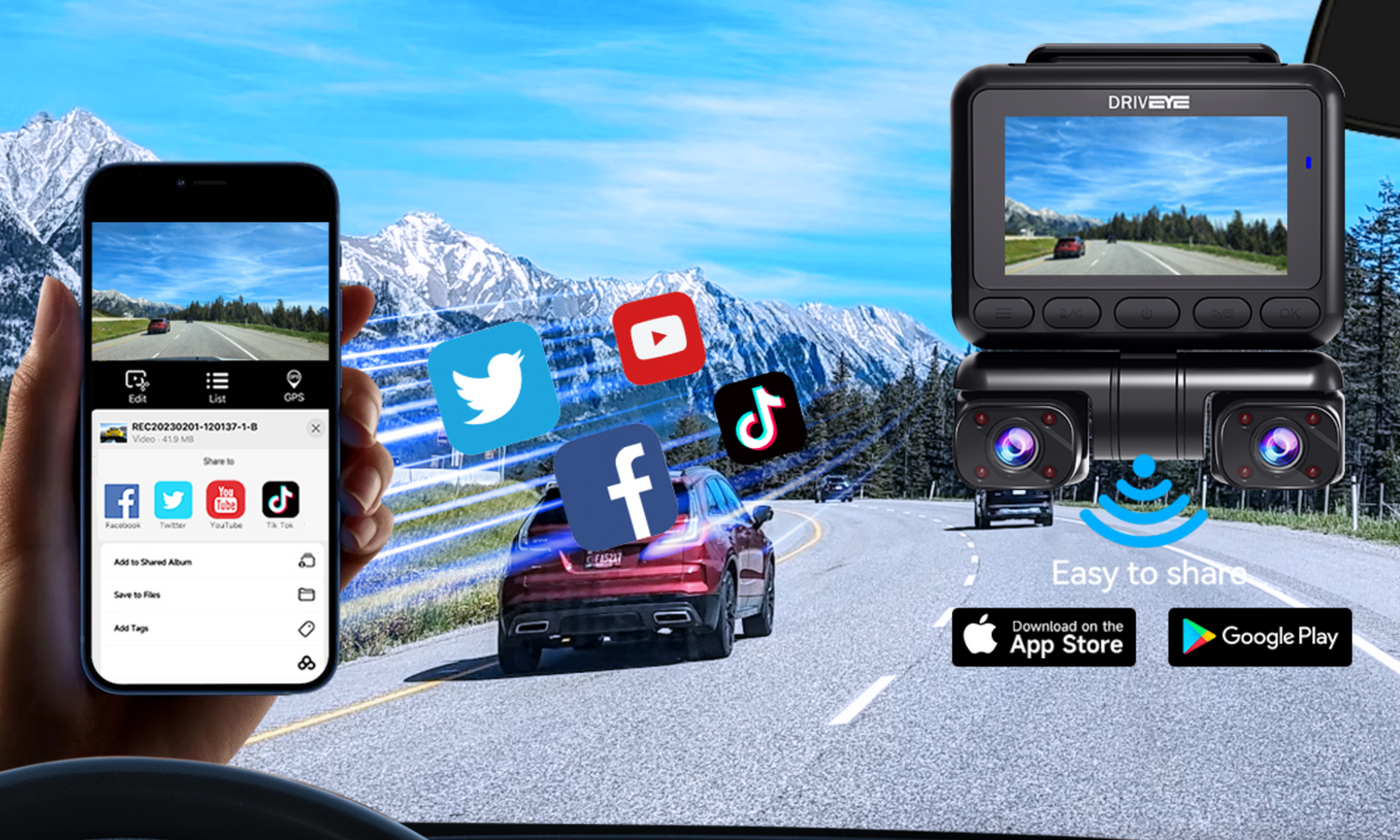
Before connecting your dash cam, download the official Viidure APP for iOS or Viidure-DashcamViewer APP for Android.
🔹 For iPhone (iOS): Search for "Viidure APP" in the App Store
🔹 For Android: Search for "Viidure-DashcamViewer APP" in Google Play
*Tip: If you have trouble downloading the app, contact driveyetech@support.com for assistance.
Step 2: Enable Wi-Fi on Your Dash Cam
By default, Wi-Fi is turned off on the DRIVEYE D9 dash cam. To enable it:
1️⃣ Power on the dash cam
2️⃣ Turn on Wi-Fi using one of the following methods:
- Method 1: Press and hold the OK button on the dash cam until Wi-Fi is activated
- Method 2: Use voice control and say "Turn on Wi-Fi"
- Method 3: Go to the menu settings on the dash cam and select Wi-Fi
Step 3: Connect Your Smartphone to the Dash Cam’s Wi-Fi
Once Wi-Fi is activated on the dash cam:
1️⃣ Open your phone’s Wi-Fi settings
2️⃣ Look for the dash cam's Wi-Fi network (e.g., **DRIVEYE_D9_****)
3️⃣ Select the network and enter the default password: 12345678
4️⃣ Wait until your phone successfully connects to the dash cam’s Wi-Fi
📌 Important Note:
- If you cannot find the Wi-Fi network, restart the dash cam and try again.
- The initial password is set for first-time login only. For security reasons, it is highly recommended to change the Wi-Fi password after connecting.
To change the Wi-Fi name or password:
- Open the Viidure app
- Go to Settings and modify the Wi-Fi credentials
If you forget your new password, reset the dash cam to factory settings to restore the default password (12345678).
Step 4: Open the App and Connect
1️⃣ Launch the Viidure APP on your smartphone
2️⃣ Tap the “Connect” button
3️⃣ Wait for the app to establish a connection with the dash cam
Connecting your DRIVEYE dash cam to your smartphone via Wi-Fi makes managing your recordings effortless. It allows you to:
✔ Quickly review and download footage
✔ Monitor live video in real-time
✔ Easily adjust settings remotely
✔ Enhance security and convenience on the road
With a stable Wi-Fi connection and the Viidure APP, you can access all dash cam features from the palm of your hand—making your driving experience safer and more efficient.
🚘 Stay connected, stay protected!
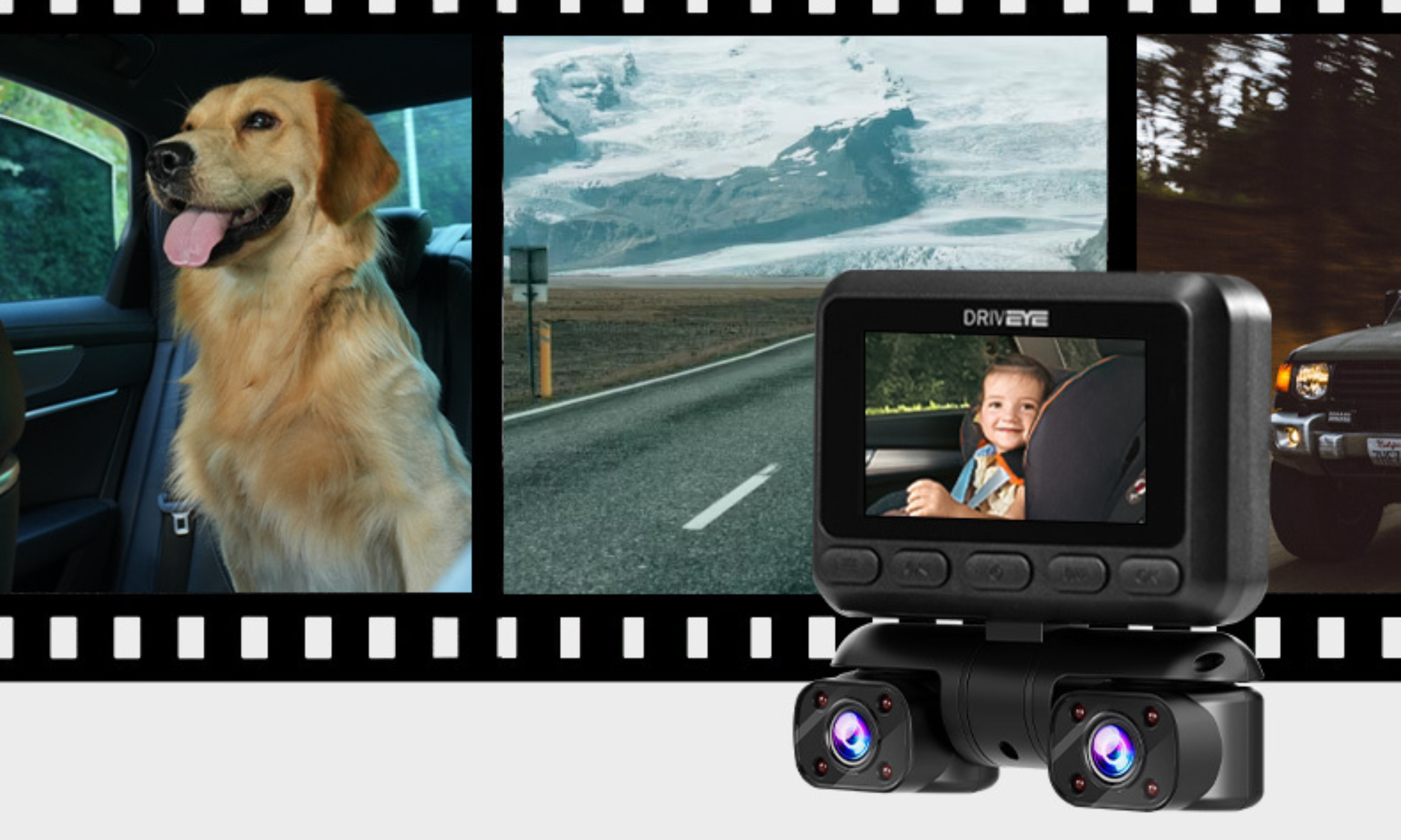
Click on the right to learn about our latest product: DRIVEYE D9 5-Channel Dash Cam - giving you 360° protection without blind spots


2 comments
vasile florin ciorgovean
Salve come faccio a recuperare l’abbonamento AI pagato per 2 anni visto che ho cambiato il cellulare? Grazie mille
Anastasios karalis
When the car and dash cam are off can I still see the videos and if I can tell me how
Leave a comment
This site is protected by hCaptcha and the hCaptcha Privacy Policy and Terms of Service apply.